Thursday, July 16, 2015

SharePoint 2013 BI Farm Setup Guide: Section II. Plan Your SharePoint 2013 BI Farm

This is section II of the MBP SharePoint 2013 BI Farm Setup Guide. 

This section describes how to plan your SharePoint 2013 farm. It provides detailed tables and diagrams illustrating the MBP farm as an example of a mid-size, production corporate intranet. Your farm will have different details, so you should create your own versions of these tables and diagrams and use them as reference documentation for your farm. 

As mentioned in Section I, MBP stands for "Martin's Best Practices."  I use MBP as the acronym for the enterprise, the domain and also the name of the farm. MBP does not correspond to any actual company or client. You may use this guide as a template by globally replacing "MBP" with the acronym or name of your company or client.


A. Technology Choices

This guide uses the following technology choices to build the MBP SharePoint 2013 farm:
  • Windows Server 2012 R2
  • SQL Server 2012 with SP2
  • SharePoint 2013 with SP1
You may make slightly different technology choices and still use most of the steps and scripts in this guide. Nearly all steps of this procedure work the same using Windows Server 2008 R2, and the scripts have been successfully used in those environments. However, screen shots show the Windows Server 2012 R2 user interface. Most steps and scripts also work fine with SQL Server 2008 R2.

B. Infrastructure Choices - Microsoft Azure IaaS

Section III of this guide explains how to provision your virtual hardware using Microsoft Azure Infrastructure as a Service. This choice is particularly economical if you have a Microsoft Visual Studio Premium MSDN subscription. With this MSDN subscription, you get $100 per month credit towards any Azure service. This can make a multi-farm SharePoint infrastructure very affordable particularly for individuals or small teams who can shut down all the virtual servers when not in use, such as at night and on the weekends. You may also provision hardware in your own data center, in which case you may skip (or skim) section III of this guide.

C. Logical Architecture

This section provides a reference architecture for an Intranet farm. Your business goals will drive the logical architecture for your farm. Our goal for the logical architecture of the MBP farm is to support all the core SharePoint features plus the Business Intelligence features listed in section I – A – 2.

The following diagram illustrates the logical architecture of the MBP farm:
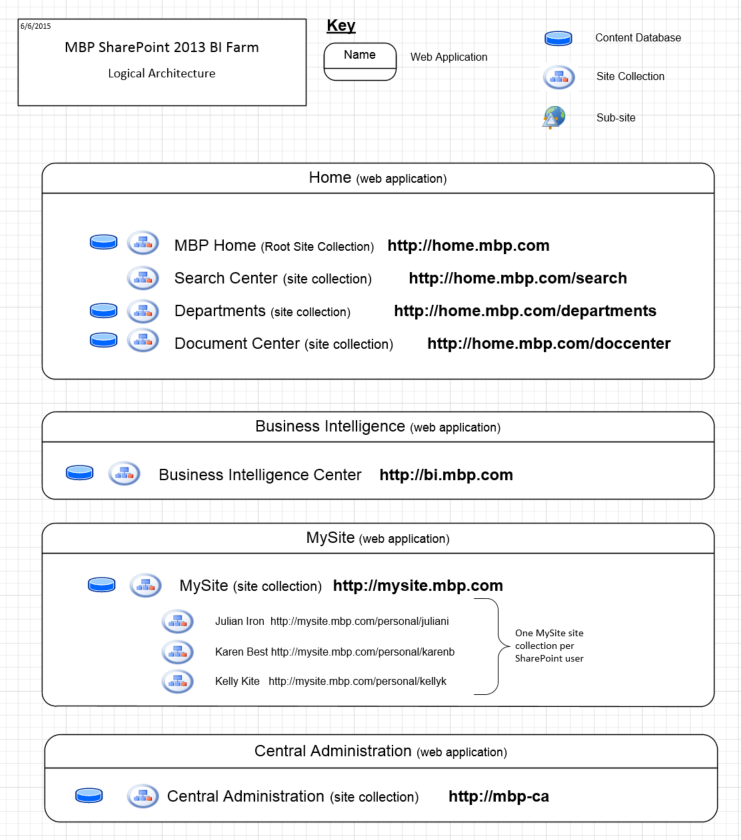


The Logical Architecture of the MBP farm shown above helps identify the following:

o What SharePoint web applications (IIS sites) the farm will have

  •  MBP will have four web applications: Home, BI, MySite, and Central Admin
o What SharePoint Site Collections we will have
  • The Home Web App will have four Site Collections: Home, Search, Departments, and Document Center
o What URLs we plan to use for each SharePoint Site Collection

Feel free to download the Visio file that contains the Logical Architecture diagram, High-Level Physical Architecture diagram, and Detailed Physical Architecture diagrams from the "Diagrams" folder in my One Drive. You may save a lot of time by starting with my diagrams and search for all instances of the acronym MBP and replace them with your company or client's name or acronym in order to document your own farm with this style of diagram.


Document the Logical Architecture as one of the first steps in planning your SharePoint farm. This is a best practice. The Logical Architecture will help you communicate within your organization what the SharePoint farm will have. Use it to validate what the SharePoint farm is intended to do. Documenting the Logical Architecture will simplify your next steps when building the farm and configuring SharePoint. You can always add more web applications and site collections later.

For the MBP farm, this Logical Architecture identifies three Host Headers we will need so that URLs for our SharePoint sites are intuitive (e.g. http://bi.mbp.com) rather than named using the server name:


Host Headers

  • home.mbp.com
  • mysite.mbp.com 
  • bi.mbp.com


D. Physical Architecture

1. High-Level Physical Architecture

Your objectives and constraints will drive the physical architecture for your farm. Our goal for the physical architecture of the MBP farm is to distribute the workload across multiple servers in a manner consistent with a medium-sized farm, with extra servers allocated to Search and Business Intelligence workloads. This starts with the three-tier farm model, as recommended for production deployments in the Microsoft Technet article, Install SharePoint 2013 across multiple servers for a three-tier farm. The MBP farm physical architecture goes beyond this fundamental architecture by adding one additional SharePoint application server specifically for search, and another SharePoint application server specifically for Business Intelligence. The resulting high-level physical architecture is illustrated in the following diagram. It is a best practice to create your own diagram illustrating the farm you plan to build. Jump-start your work to create your own diagram by downloading the free Visio 2013 copy of this diagram then change the details to match the farm you plan to build:


For economy and because MBP does not have many end users, when we get into the detailed steps to install and configure this farm, this guild drops the load balancer and one of the two front-end web servers that appear in the preceding diagram. 

2.     Size of Each Server

For a production farm, use Capacity Management and Sizing to estimate the number of servers, the work-load of each server, the amount of RAM, number of cores and amount of disk storage.

Normally an enterprise will require a set of SharePoint farms -- e.g. DEV, TEST, STAGE and PRODUCTION -- all following the same, consistent configuration. For the MBP farm hardware sizing, we use five SharePoint servers to model the deployment considerations of a PRODUCTION farm, but we keep the size of each server relatively small as you would for a DEV farm.  According to Hardware and software requirements for SharePoint 2013, the minimum hardware requirement for a SharePoint Web server or Application server in a pilot, user acceptance test or production deployment is 12 GB RAM, 4 processors and an 80 GB of hard disk space. We would choose 12 GB RAM and 4 cores for most machines in the MBP farm, but Windows Azure Management Portal only provides a limited selection of virtual machine sizes. For the MBP example, therefore, we will use the Windows Azure “A5” virtual machine size, which comes fairly close with 14 GB RAM and 2 cores. If your farm must support pilot or production deployment, you should increase this to “A5” which has 14 GB RAM and 8 cores.

In addition to the one front-end Web server, three SharePoint Application servers, and one SQL Database server, the MBP farm requires: 


·        A SQL Server Analysis Services Server to support BI PowerPivot

·        An Office Web Apps server to support the OWA experience.

·        An Active Directory/Doman Controller (AD/DC) to support the MBP domain

The AD/DC machine can use an Azure “small” size virtual machine (1.75 GB RAM and 1 core) while we’ll use another “A5” for the OWA.

Plan your farm physical architecture by filling in a table like the one below.
Server Role
Machines
Cores
RAM
system drive
data drive
Front-end Web Server (WFE)
2
2
14 GB
100 GB
100 GB
App Server 1: Central Admin
1
2
14 GB
100 GB
100 GB
App Server 2: Search
1
2
14 GB
100 GB
256 GB
App Server 3: Bus. Intelligence
1
2
14 GB
100 GB
100 GB
SQL Database Server for SP
1
2
14 GB
100 GB
512 GB
Office Web Apps Server
1
2
14 GB
100 GB
100 GB
Active Directory/Domain Controller
1
1
1.75 GB
100 GB
100 GB

Note in the physical architecture table above we allocate somewhat more space on the data drive for the Search Server because the Index will reside on that drive. Also, for the SQL Database server, we allocate a significant amount to the data drive where all the SharePoint content databases will reside.

3. Choose Domain Name and Machine Names

Now that we have the physical architecture plan, we may choose our domain name and machine names.

We can do this because we are building the MBP farm and domain from scratch. Normally in corporate environments you do not get to choose your domain name nor your machine names. Rather, you provide your hardware requirements (like the table above) to the data center staff, and the data center staff come back later and tell you what your server names are. Typically, data center staff assign hard-to-remember machine names like “ukspsppd501” that make perfect sense to them seem arcane to me. I don't try to argue about naming conventions, so I keep a table associating machines roles with machine names. Fortunately, for the MBP farm, we can take advantage of our Azure freedom and choose simple, intuitive names that capture the server role, such as MBP-CA for Central Admin.

Domain Name = MBP.COM

Along with our domain, we are going to require a domain administrator account. Using Azure we will specify this account when we provision our first server (the Domain Controller) so it’s important to plan that now.

Domain Administrator = mbpadmin

Document your machine names using the planning table below, including the names of the machines in your configuration and what administrator account you will normally use to login (more on accounts in the next section.)
Machine Names


Machine Name
Server Role
Administrator Login
MBP-DC
Active Directory / Domain Controller
MBP\mbpadmin
MBP-SQL
SQL Server 2012 SP1 BI Edition for all SharePoint Databases
MBP\sql_admin
MBP-CA
SharePoint 2013 Central Admin and Application Server
MBP\sp_admin
MBP-WFE1
SharePoint 2013 WFE 1
MBP\sp_admin
MBP-WFE2
SharePoint 2013 WFE 2
MBP\sp_admin
MBP-SEARCH
SharePoint 2013 Search Server
MBP\sp_admin
MBP-BI
SharePoint 2013 Business Intelligence Services Server
NPB\sp_admin
MBP-SSAS
SQL Server 2012 SP1 BI Edition for SQL Server Analysis Services
MBP\sql_admin
MBP-OWA
Office Web Applications Server
MBP\sp_admin


4. Detailed Physical Architecture           

Create a detailed diagram of your farm physical architecture that includes:
  • the number of servers
  • the names and roles of each server
  • the hardware size of each server
  • the IP address of each server
  • sites and services hosted on each server

We can plan the IP address of each server because we are building our own VMs in Windows Azure. This guide will describe in detail how to configure static internal IP addresses for each VM. Note that you must explicitly configure static IP addresses for your Azure Virtual Machines, otherwise, by default, Azure VMs receive dynamically-allocated IP addresses when they reboot. If you are using Azure, use this technique for the DNS server and for all your Azure VMs. Setting a static IP Address is necessary if you plan to shut down your VMs for economy when not using them. Otherwise if you have an enterprise Data Center, you will probably request virtual machines from your Data Center. Later, your Data Center will tell you the names and IP address of each machine and you should come back and update your detailed diagram with that information.

The detailed physical architecture diagram for our MBP farm is shown below. Download the free copy of the Visio diagram shown below to jump-start your work on your detailed physical architecture diagram. Use your detailed physical diagram to document all the choices you made when planning your SharePoint 2013 farm.


This physical architecture diagram for MBP shows eight servers, including MBP-SQL, the SQL Server for the SharePoint content databases. It also includes the MBP-DC, the Domain Controller for the mbp.com domain. Note that all the user-facing web applications including the Home site, BI Center, and MySite are hosted on MBP-WFE1 and MBP-WFE2. Maintain your detailed physical architecture diagram as you maintain your farm; you will refer back to this diagram many times throughout the process of configuring SharePoint.


E. Plan Service Accounts

SharePoint requires many accounts. Plan out the names of the Farm account, the Setup account, and all the service accounts now. It is a best practice to document in detail what accounts your farm(s) will use and for what purpose. This section contains a detailed table of all service accounts used in the MBP farm, including notes on usage and required memberships and permissions.

As we did with machine names, we choose simple, intuitive account names such as sp_farm for the farm account and sp_admin for the SharePoint Setup 
(install) account.


The following table specifies the Account name, the role, the purpose of each account, and what rights that account must be granted in the different systems prior to configuration of the SharePoint farm. You will refer back to this table many times throughout the process of configuring your SharePoint farm.

Account User Name
Role
Usage/Purpose/AKA
Local SharePoint Rights
SQL Rights Needed
mbpadmin
Domain Administrator
Administrator of the Active Directory / Domain Services server


sp_farm
Farm Account
A.K.A. the Database Access Account. Used for Windows Timer Service, Central Admin, and User Profile Service.
Before installing SP, must be a member of the local administrators group on all SharePoint Servers. Must be able to log on locally to all SP servers (member of remote desktop users group – default for local administrators); The Local admin rights may be removed after UPS provisioning.
SharePoint setup program automatically adds this account into the dbcreator fixed server-level role and into the securityadmin fixed server-level role. SP setup also makes this account a member of the db_owner role for all SharePoint databases.
sp_admin
Setup User Account
AKA SharePoint Admin; AKA Install Account. Used to perform bit-level changes on servers. Used to install SharePoint, run PSConfig and to install any service packs or other s/w on any SP server.
Must be a member of the local administrators group on all SharePoint servers. Does not need to be a local admin on SQL server. Do not use a “normal” user account. [For least privileges, disable this account after SP install is complete. Re-activate when need to install patches.]
The account must be able to log on to the computer running SQL server. You must add this account into the securityadmin server-level role and into the dbcreator server-level role in SQL Server before using it to install SharePoint (before you run setup).
sql_service
SQL Server Service Account
SQL Server Service  account, AKA the Account that starts the SQL Server instance service.
None
Needed when installing SQL server. Before you install SQL Server, if you need Kerberos, you must register a Service Principal Name (SPN) for the SQL Server Service for this domain account in AD. See http://msdn.microsoft.com/en-us/library/ms191153(v=SQL.100).aspx

sql_admin
SQL Server Administrator Account
SQL Administrator account
None
User with full admin rights in SQL server. Must be a member of the local Administrators group on the SQL server.
sp_webapp
SP Web Application App Pool Account
App pool account for all User-facing web applications.
None
Roles assigned automatically by SP Install
sp_svcapp
SP Service Application app pool Account
App pool account for all service applications that do not have a dedicated specific account
None
Roles assigned automatically by SP Install
sp_crawl
Content  (Crawl) Account
AKA the default content access account. Used in the configuration of the Search Service Application. Used to crawl content.
None
Roles assigned automatically by SP Install
sp_search
Search Account
This account will run the application pool for the Search Service Application.
None
None
sp_adsync
User Profile Synch Account
AKA the AD Synch Account. Used when configuring a synchronization connection with Active Directory.
Your Active Directory administrator must grant the Replicating Directory Changes permission on the domain to this account.

sp_ppvtsvcapp
PowerPivot  App pool Account
Account that will run the application pool for the PowerPivot for SharePoint Service Application
None
When configuring PowerPivot for SharePoint, you will grant this account access to all SharePoint content database. Grant access each time a new SharePoint content database is created.
ssas_pvtsvc
SQL Server Analysis Services (PowerPivot) service account
SQL Server Analysis Services account. AKA the account that starts the SQL Server Analysis Services (PowerPivot) service.
None
Needed when installing SQL Server Analysis Services. 
ssis_service
SQL Server Integration service account

None
Needed when installing SQL Server Integration Services. 
sp_unattended
Unattended service account
Unattended service account for Excel and Visio services, AKA the Unattended data refresh account
Grant this account access to the data sources.


In this step we have planned out all the service accounts. Later we will need to create them in Active Directory. Section III – C of this guide contains the detailed steps to create these accounts in AD.  Other sections have the steps to grant them the appropriate rights. In an enterprise deployment, you may need to put in a request to administrators who are responsible for Active Directory, asking them to create these service accounts for you. 

F. Plan Naming Conventions

Plan out the naming convention for your databases, web applications, host headers and the URLs your users will use to access the SharePoint sites.
A well-planned naming convention is worth the up-front investment because it simplifies maintenance over time and can be extended in a consistent way to better support multiple farms.

In step II – C above you selected the name of your domain: mbp.com in this case. Now plan out the rest of the names to be used for your web sites, databases, and host headers. You will refer back to this plan when you tailor the SetEnvironmentVariables.ps1 PowerShell script to set Windows environment variables such as MBP_HOME_WEB_APP_NAME to the names you have selected in this plan. The goal is for your PowerShell scripts to contain no hard-coded strings that are specific to only one farm.

The first step is to flesh out the plan for just the PRODUCTION SharePoint farm by filling in the table below. This table lists all the names of your web sites, databases, and host headers, and what Environment Variable will be set to the value of that name in one specific farm.

Name
Purpose
Environment Variable
SPDB
SQL Server Instance Name
n/a
sql_server_alias
SQL Server Alias set in cliconfg.exe
MBP_SQL_SERVER_ALIAS
sp_config
SharePoint configuration DB name
MBP_SP_CONFIG_DB
sp_content_ca
SharePoint Central Admin DB name
MBP_SP_CA_CONTENT_DB
Home
Name of Home SharePoint Web App
MBP_HOME_WEB_APP_NAME
URL of the Home SharePoint Web App
MBP_HOME_URL
sp_content_home
Content Database name for Home
MBP_HOME_DBNAME
Host Header for the Home SP Web App
MBP_HOME_HOST_HEADER
MySite
Name of the My Site Host Web App
MBP_MYSITE_WEB_APP_NAME
URL of the MySite Host Web Application
MBP_MYSITE_URL
sp_content_mysite
Content Database name for MySite
MBP_MYSITE_DBNAME
mysite.mbp.com
Host Header for the MySite Host
MBP_MYSITE_HOST_HEADER
sp_state_service
State Service App Database name
MBP_STATE_SVC_DB_NAME
sp_ssrs_service_
SSRS Service App Database name
MBP_SSRS_SVC_DB_NAME
sp_managed_metadata
Managed Metadata Database name
MBP_MANAGED_META_DB
sp_search_service
Search Service App Database name
MBP_SEARCH_SVC_DB
sp_userprofile_service
User Profile Service App Database name
MBP_USERPROFILE_SVC_DB
sp_secure_store_service
Secure Store Service App DB name
MBP_SECURE_STORE_SVC_DB
BI Center
Name of Bus. Intelligence Ctr web app
MBP_BI_WEB_APP_NAME
URL of the Bus. Intelligence Center
MBP_BI_URL
sp_content_bi
Content Database name for BI Center
MBP_BI_DBNAME
bi.mbp.com
Host Header for the BI Center Web App
MBP_BI_HOST_HEADER
mbp-owa.mbp.com
the OWA Server Name
MBP_OWA_SERVER
In anticipation of building multiple farms, the next step describes how to extend all these names to handle multiple forms (e.g. DEV, TEST and STAGE).


G. Naming Conventions for Multiple Farms

Most enterprises that deploy SharePoint on-premises deploy more than one farm. Typically, they deploy a series of SharePoint farms to support a pipeline for solution development. Your enterprise may need three or four SharePoint farms to support a build-and-deploy process that takes customization from development to test, from test to staging and from staging to production.

Plan the account names, site names, URLs and host headers you will use for your DEV, TEST, STAGE and PRODUCTION farms now. If you are only going to build one farm, you can use only the PRODUCTION version of each name. The PRODUCTION names are the shortest versions of each name.  Fill in the table below with your plan:

 1.  URL and Site Names for Multiple Farms

DEV
TEST
STAGE
PRODUCTION
SPDB-DEV
SPDB-TEST
SPDB-STAGE
SPDB
sql_server_alias
sql_server_alias
sql_server_alias
sql_server_alias
sp_dev_config
sp_test_config
sp_stage_config
sp_config
sp_dev_content_ca
sp_test_content_ca
sp_ stage_content_ca
sp_content_ca
Home-DEV
Home-TEST
Home-STAGE
Home
sp_dev_content_home
sp_test_content_home
sp_stage_content_home
sp_content_home
MySite-DEV
MySite-TEST
MySite-STAGE
MySite
sp_dev_content_mysite
sp_test_content_mysite
sp_stage_content_mysite
sp_content_mysite
mysite-dev.mbp.com
mysite-test.mbp.com
mysite-stage.mbp.com
mysite.mbp.com
sp_dev_state_service
sp_test_state_service
sp_stage_state_service
sp_state_service
sp_dev_ssrs_service_
sp_test_ssrs_service_
sp_stage_ssrs_service_
sp_ssrs_service_
sp_dev_managed_metadata
sp_test_managed_metadata
sp_stage_managed_metadata
sp_managed_metadata
sp_dev_search_service
sp_test_search_service
sp_stage_search_service
sp_search_service
sp_dev_userprofile_service
sp_test_userprofile_service
sp_stage_userprofile_service
sp_userprofile_service
sp_dev_ecure_store_service
sp_test_secure_store_service
sp_stage_secure_store_service
sp_secure_store_service
BI Center-DEV
BI Center-TEST
BI Center-STAGE
BI Center
sp_dev_content_bi
sp_test_content_bi
sp_stage_content_bi
sp_content_bi
bi-dev.mbp.com
bi-test.mbp.com
bi-stage.mbp.com
bi.mbp.com
mbp-owa-dev.mbp.com
mbp-owa-test.mbp.com
mbp-owa-stage.mbp.com
mbp-owa.mbp.com

Your primary concern is to have unique URLs, site names and account names across farms. This is best practice for security. Furthermore, different sites on the same network must have different URLs. Note that this table lists unique SQL database names (e.g. sp_dev_config, sp_test_config) out of an abundance of caution. You do not really need different database names from farm to farm because each farm should use a unique SQL instance. However, just in case two farms do use the same SQL instance, you absolutely must have unique database names. This naming convention favors consistency.

2. Account Names for Multiple Farms

DEV
TEST
STAGE
PRODUCTION
sp_dev_farm
sp_test_farm
sp_stage_farm
sp_farm
sp_dev_admin
sp_test_admin
sp_stage_admin
sp_admin
sql_dev_service
sql_test_service
sql_stage_service
sql_service
sql_dev_admin
sql_test_admin
sql_stage_admin
sql_admin
sp_dev_webapp
sp_test_webapp
sp_stage_webapp
sp_webapp
sp_dev_svcapp
sp_test_svcapp
sp_stage_svcapp
sp_svcapp
sp_dev_crawl
sp_test_crawl
sp_stage_crawl
sp_crawl
sp_dev_search
sp_test_search
sp_stage_search
sp_search
sp_dev_adsync
sp_test_adsync
sp_stage_adsync
sp_adsync
sp_dev_ppvtsvcapp
sp_test_ppvtsvcapp
sp_stage_ppvtsvcapp
sp_ppvtsvcapp
ssas_dev_pvtsvc
ssas_test_pvtsvc
ssas_stage_pvtsvc
ssas_pvtsvc
ssis_dev_service
ssis_test_service
ssis_stage_service
ssis_service
sp_dev_unattended
sp_test_unattended
sp_stage_unattended
sp_unattended


Next Steps

This concludes Section II of the MBP SharePoint 2013 BI Farm Setup Guide. Section II described how to plan your SharePoint 2013 farm, including recommended ways to document your technology choices, logical architecture, physical architecture and naming conventions. 

The next section, section III Build a Virtual Network in Microsoft Azure, describes how to create a Virtual Network in Azure and a Domain Controller to manage the Service Accounts.

SharePoint 2013 BI Farm Setup Guide: Section X. Configure the SharePoint Farm

This is section X of the MBP SharePoint 2013 BI Farm Setup Guide. 

This section describes how to create the MBP SharePoint farm by running the CreateFarm script
.


As mentioned in Section I, MBP stands for "Martin's Best Practices."  I use MBP as the acronym for the enterprise, the domain and also the name of the farm. MBP does not correspond to any actual company or client. You may use this guide as a template by globally replacing "MBP" with the acronym or name of your company or client.

In this section we create the MBP SharePoint farm by running the PowerShell script named CreateFarm.ps1. We run this script on the first SharePoint server: the one that will become the Central Admin server (MBP-CA in this case). Subsequently, we add each of the other SharePoint servers to the farm by running AddServerToFarm.ps1.

In this section we describe how to prepare and run the PowerShell scripts provided along with this blog series. Specifically, we detail the following procedure: 

A. Prepare the PowerShell scripts 
    1. Copy the set of PowerShell scripts to the F:\Scripts folder
    2. Prepare the SetEnvironmentVariables.ps1 script for this particular farm
    3. Run the SetEnvironmentVariables.ps1 script
B. Create the Farm by running the CreateFarm.ps1 script


A. Prepare PowerShell Scripts

All the PowerShell scripts used in this guide are available in the following shared, public OneDrive folder:


These scrips are specifically designed for creating multiple SharePoint 2013 farms in a "pipeline" i.e. DEV - TEST - STAGE - PRODUCTION. All these scripts are free for you to copy, adapt and use.


1. Copy PowerShell Scripts to the Scripts folder on MBP-CA


1. Create a folder named Scripts on the F: (data) drive on the server that will become the Central Admin SharePoint server – MBP-CA in this case. 

2. Open the MBP Farm PowerShell Scripts public folder on OneDrive

3. Download all the PowerShell Scripts from OneDrive to the F:\Scripts folder on your Central Admin SharePoint server. 

4. After you have copied all the PowerShell scripts to the F:\Scripts folder, you may want to share your folder within your network. You will be editing one or more of these files and you will want to copy the updated versions of these PowerShell scripts to F:\Scripts folders on the other servers in your farm. To do this, right-click the F:\Scripts folder and select share with --> Specific people...


5. In the File Sharing dialog, click Share.


6. Click Done.

Note you have to modify the SetEnvironmentVariables.ps1 script. Do so now and later copy the scripts to the other servers.


2. Modify the SetEnvironmentVariables Script


You must modify the SetEnvironmentVariables.ps1 script for the specifics of your farm, then run the script.

The PowerShell scripts included with this guide are designed so that you can use the same PowerShell scripts for the most part unmodified on all farms because the values that differ from farm to farm are stored in Windows Environment Variables rather than hard-coded in the scripts.

However, you must still modify the SetEnvironmentVariables.ps1 script. The SetEnvironmentVariables.ps1 script sets the environment variables to the values that differ from farm to farm. The other PowerShell scripts get these values from the environment variables. This way, you do not have to modify any of the other PowerShell script.

1. If you are not logged in to the Central Admin server (MBP-CA), open a remote desktop connection to the Central Admin server and login using the SharePoint Setup Account: sp_admin.

2. Go to the Windows Start page, then click the down arrow at the bottom left to get to the Apps page 

3. In the Microsoft SharePoint 2013 Products category, right-click on SharePoint 2013 Management Shell and select Pin to taskbar so that SP management shell is always handy on the task bar. You may also want to Pin to Start.

4. right-click on SharePoint 2013 Management Shell and select Run as administrator


5. At the UAC prompt, click Yes.
Windows opens the SharePoint 2013 Management Shell.  Note that Management Shell displays “The local farm is not accessible. Cmdlets with FeatureDependencyId are not registered.” This is normal behavior because you have not created the farm yet.

6. From the SharePoint 2013 Management Shell, navigate to F:\Scripts

7. Enter the following command to edit the SetEnvironmentVariables.ps1 script using the Windows Interactive Script Editor

ise .\SetEnvironmentVariables.ps1


The Windows Interactive Script Editor (ISE) opens and displays the SetEvironmentVariables.ps1 PowerShell script. Take a moment to familiarize yourself with this script.

The SetEvironmentVariables.ps1 PowerShell script requires one input command-line parameter: the $environmentName parameter. This parameter must be one of the following strings: DEV, TEST, STAGE or PRODUCTION. The SetEvironmentVariables.ps1 script sets the environment variables to different values depending on what environment (farm) is specified in the $environmentName parameter. If you are only planning to build one farm, you may treat your farm as the PRODUCTION farm and use only that portion of the SetEvironmentVariables.ps1 script.

8. From the Windows ISE, scroll down to the  block of code that starts 

if ($environmentName –eq “PRODUCTION”)

9. Edit the values of the second parameter in each call to the SetEnvironmentVariable to the names you planned when you prepared your naming conventions in step II –F.

Refer to the table you prepared in Plan Naming Conventions step (II -F) and edit your copy of the SetEvironmentVariables.ps1 script to specify all the names and URLs you plan to use for your web applications, databases, and host headers.


10. If you are only building one farm, you only need to edit the “PRODUCTION” block of logic. Otherwise, update all environment blocks to agree with the plans you created back in step II – F.

11. Save your changes to the script.


3. Unblock all PowerShell Scripts from Execution Policy Security Block


Default windows execution policy blocks running PowerShell scripts that came from another computer. 

If you attempt to run a PowerShell script without Execution Policy permitting it to run, PowerShell will display the following message:

F:\Scripts\<name of script>.ps1 cannot be loaded. The file
F:\Scripts\<name of script>.ps1 is not digitally signed. You
cannot run this script on the current system. For more information about
running scripts and setting execution policy, see about_Execution_Policies at
http://go.microsoft.com/fwlink/?LinkID=135170.

Unblock every PowerShell script in the F:\Scripts folder by opening Windows Explorer, navigating to the Scripts folder (F:\Scripts) and taking the following steps:

1. From the SharePoint 2013 Management Shell, enter the following command to unblock the UnblockFarmSetupScripts.ps1 script  

Unblock-File -Path .\UnblockFarmSetupScripts.ps1 


2. Now run the UnblockFarmSetupScripts.ps1 script by entering the following command 

.\UnblockFarmSetupScripts.ps1 


4. Run the SetEnvironmentVariables Script


You can run the SetEnvironmentVariables script from within the ISE editor by entering the script and the appropriate environment name (e.g. “PRODUCTION) in the command window:

.\SetEnvironmentVariables.ps1   PRODUCTION


NOTE: After running the SetEnvironmentVariables script, you MUST exit the ISE editor and the SharePoint 2013 Management Shell window  because the newly set environment values have no effect within the current session. PowerShell will load all the new environment variable values when you start a new session. 


B. Create the Farm

Perform this step on the server that will host Central Administration (MBP-CA, in this case). This will become the first SharePoint Server in the farm.  This step creates the farm configuration database, the Central Admin Content Database, and the Central Admin web site. Perform this step only once per farm. 

Note 1: Our MBP farm architecture is slightly unusual in that it calls for Central Administration to run on the default port 80 of the Central Admin Server.  The URL for Central admin will be simply http://mbp-ca.mbp.com.   The CreateFarm.ps1 PowerShell script contains a line (line 86) that creates Central Administration at the default Port 80. This is fine for MBP because all the user web applications (home, mysite, and bi) are hosted on the WFE server.  If your architecture calls for Central Admin to run on a different port (like, e.g. port 7777) you must modify the following line (line 86) of the script before you run it:

New-SPCentralAdministration -Port 80 -WindowsAuthProvider "NTLM"  

Note 2: The CreateFarm script will prompt you to key in the Farm Account password and also the Farm Security Passphrase. For security, the PowerShell scripts do not contain any hard-coded passwords or pass phrases. Therefore, you must plan and document the account passwords and farm passphrase you will use on each environment (DEV, TEST, STAGE and PRODUCTION).

Farm Security Passphrase
SharePoint Rocks

1. If you are not logged in to the Central Admin server (MBP-CA), open MBP-CA.rdp (the remote desktop connection to the Central Admin server) and login as the SharePoint Setup Account: sp_admin.

2. From the Windows Start page, right-click on SharePoint 2013 Management Shell and select Run as administrator.

3. At the UAC prompt, click Yes

4. In the SharePoint Management Shell, navigate to the folder (F:\Scripts) where the scripts reside

5. Enter the following command:

.\CreateFarm.ps1

The CreateFarm script will output the following series of messages and prompts:

The local farm is not accessible. Cmdlets with FeatureDependencyId are not registered.

Enter password for account mbp\sp_farm (the SharePoint Farm account) : ********

Enter Farm Security Passphrase for this farm : ********

CreateFarm: Creating a new SharePoint 2013 Farm.


CreateFarm: Creating new SharePoint configuration database. This takes about 10 minutes...


The CreateFarm script will continue to work for about 10 minutes. Then it will continue and complete:

CreateFarm: Config database built, now configuring the local machine… 
…
VisioWebAccess                 9fec40ea-a949-407d-be09-6cba26470a0c     15                   Site                          
WAWhatsPopularWebPart          8e947bf0-fe40-4dff-be3d-a8b88112ade6     15                   Site                          
ExcelServer                    e4e6a041-bc5b-45cb-beab-885a27079f74     15                   Farm                          
ExcelServerSite                3cb475e7-4e87-45eb-a1f3-db96ad7cf313     15                   Site                          
MobileEwaFarm                  5a020a4f-c449-4a65-b07d-f2cc2d8778dd     15                   Farm                          
MobileExcelWebAccess           e995e28b-9ba8-4668-9933-cf5c146d7a9f     15                   Site                          
ExcelServer                    e4e6a041-bc5b-45cb-beab-885a27079f74     15                   Farm                          
ExcelServerSite                3cb475e7-4e87-45eb-a1f3-db96ad7cf313     15                   Site                          
MobileEwaFarm                  5a020a4f-c449-4a65-b07d-f2cc2d8778dd     15                   Farm                          
MobileExcelWebAccess           e995e28b-9ba8-4668-9933-cf5c146d7a9f     15                   Site                          

CreateFarm: Creating Central Admin on port 80...

CreateFarm: Done.

6. You may check that this worked by logging in to the SQL server and checking that the Config database and the Central Admin Content database were created.


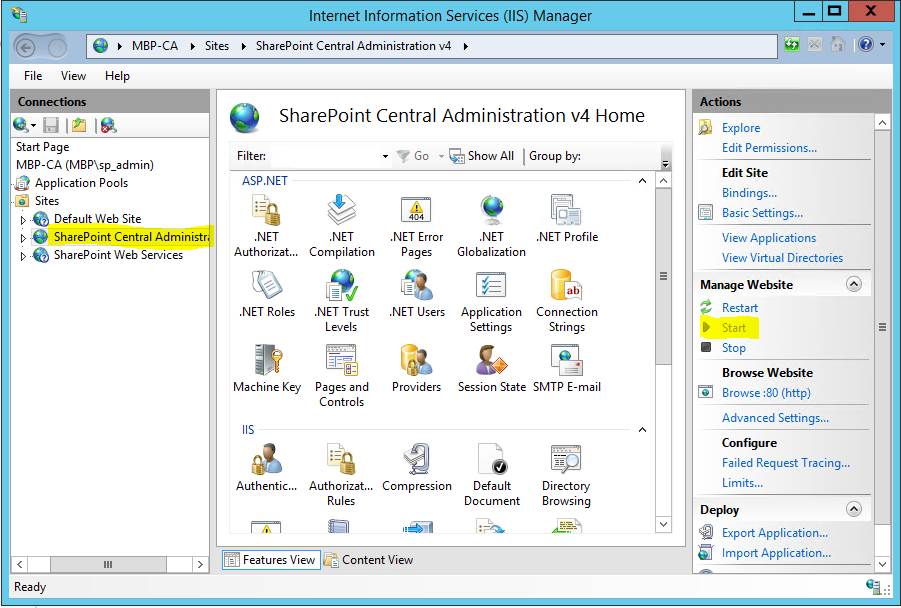
7. By default, you will have to open IIS Manager and stop the default site (at port 80) on the CA server, otherwise you will not be able to open Central Administration. If you did not change the CreateFarm script default choice of Port 80, IIS may be unable to start the SharePoint Central Administration v4 site because the IIS Default Web Site is already using Port 80.  To fix this, stop the default site and start Central Admin. Do this by: 

    a. From Server Manager, from the Tools menu in the upper right, select Internet Information Services (IIS) Manager.

    b. In IIS Manager, drill down to Sites. Select Default Web Site and click Stop in the Action pane on the right.
  

    c. Next, select SharePoint Central Administration v4 and click Start on the Action panel on the right.

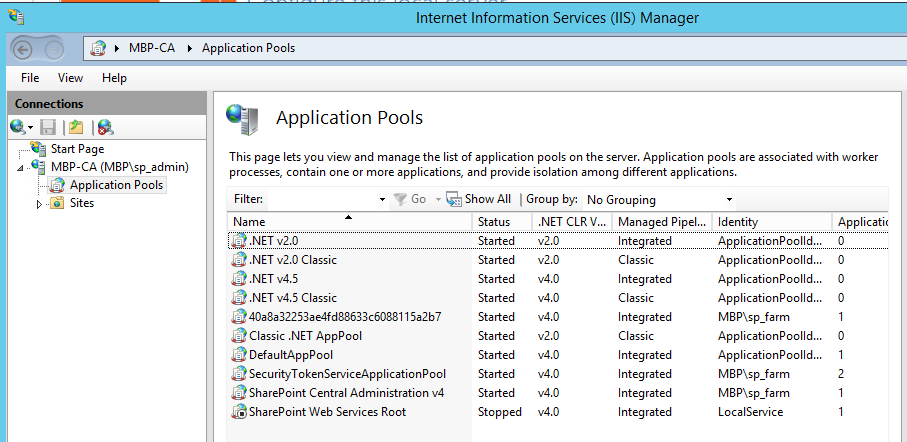
While you are in IIS Manager, if you select Application Pools from the left side navigation tree, you will note that running the CreateFarm script resulted in the creation of four App Pools:
• [GUID] using the SharePoint farm identity
• SecurityTokenServiceApplicationPool   using the farm identity
• SharePoint Central Administration v4 using the farm identity
• SharePoint Web Services Root (stopped) using LocalService

    d. Close IIS Manager

You should now be able to launch Central Administration by clicking Start, then selecting the Apps page (down arrow on the left of the Start Page) then --> SharePoint 2013 Central Administration. IE opens the Central Admin web site:

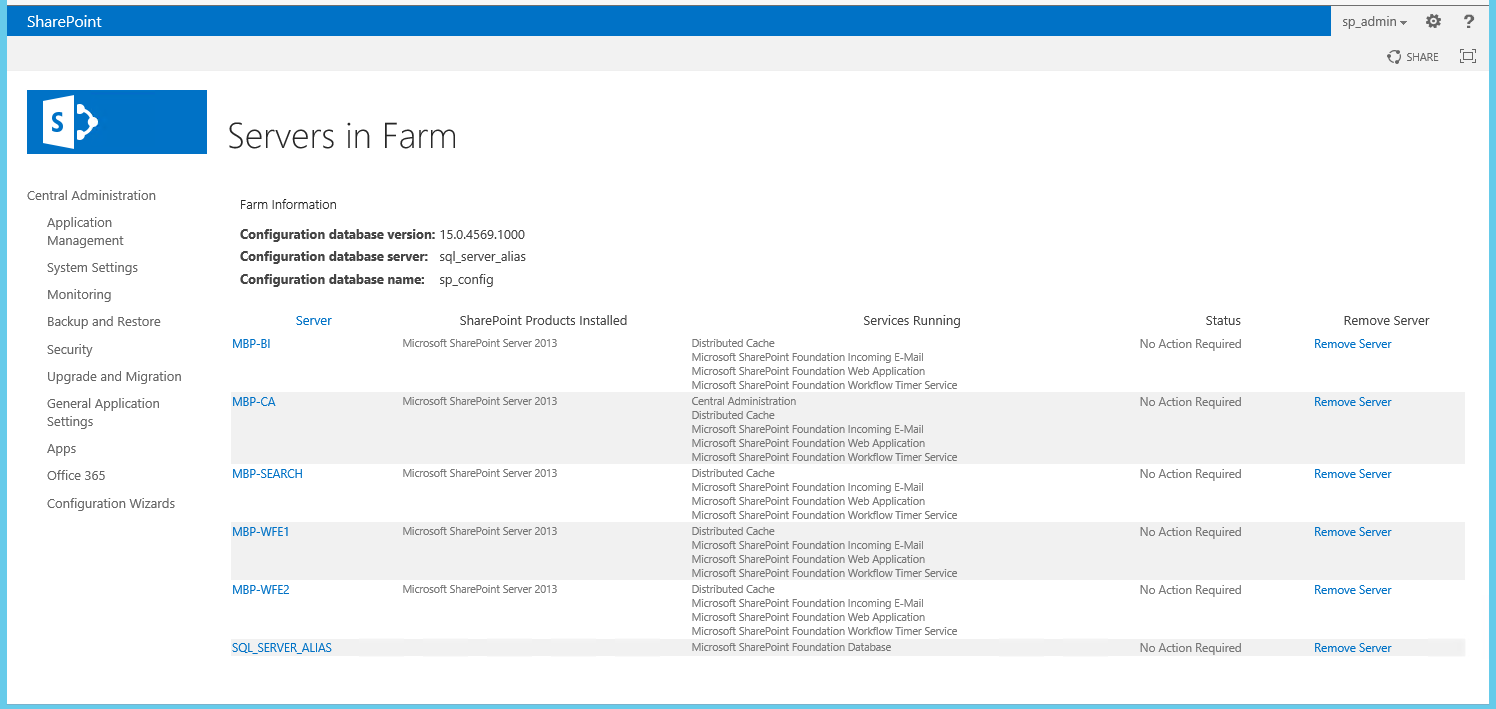
Your farm is now an absolute bare-minimum running SharePoint farm. Note that System Settings -->Manage servers in the farm shows only this CA server and the SQL server:


Only a very few services such as Central Administration and Distributed Cache are running on the CA server so far. Subsequent section will build up the farm one step at a time.

The next step is to create the Managed Accounts.


C. Run the CreateManagedAccounts PowerShell Script to create the managed accounts 


In this step we register with SharePoint all the accounts that run different SharePoint services and Service Applications.

Back in section III C, we previously created all these managed accounts in Active Directory. In this step we just register them in SharePoint Central Administration.  

The exact list of managed accounts you must register depends on your plan. 

The Farm Account (sp_farm) has already been registered when the farm was created. Also, certain accounts such as the Active Directory Sync account and the SSIS Service account do not need to be registered as managed accounts in SharePoint because they are never used to run any SharePoint services or Service Applications.

For the MBP farm, the list of accounts that must be registered are as follows:

sp_webapp – the SP Web Application app pool account
sp_svcapp – the SP Service Application app pool account
sp_crawl – the Crawl Account, AKA the default content access account
sp_search – the Search Account
sp_ppvtsvcapp – the PowerPivot for SharePoint Service App pool Account
sp_unattended – the Excel services unattended Account

You must edit the CreateManagedAccounts.ps1 script if you used a different set of service accounts before you run the script. Note, however, that you do not need to modify CreateManagedAccounts.ps1 script for different farms in your farm pipeline (DEV, TEST, STAGE, PRODUCTION) as these differences were abstracted into the Environment variables by the SetEnvironmentVariables script.

Note that the CreateManagedAccounts.ps1 script does not contain any hard-coded account names or hard-coded passwords. When you run the script it will prompt you to enter each password, so have the passwords for all the above service accounts ready. 

1. If you are not logged in to the Central Admin server, open a Remote Desktop connection to the Central Administration server (MBP-CA). Login as the SharePoint Setup Account: sp_admin.

2. From the Windows Start page, right-click SharePoint 2013 Management Shell and select Run as Administrator

3. At the UAC prompt, click Yes

4. In the SharePoint Management Shell, navigate to the folder (F:\Scripts) where the scripts reside

5. To edit the CreateManagedAccounts.ps1 script before running it, enter

 ise   .\CreateMangedAccounts.ps1  

This opens the CreateManagedAccounts.ps1 script in the ISE editor. Comment out accounts you did not define for your environment. Note that we do not save any passwords in scripts or environment variables so the script includes code that prompts the user to enter passwords at run time.

6. Save any changes you made to the CreateManagedAccounts.ps1 script

7. Run the script by pressing F5 or clicking the Run Script button in the ISE Command bar.


8. The script will prompt you for the passwords for each account. Enter each password.

At the end the script displays all the managed accounts. This display shows password expiration dates but this is misleading. AD settings set to never expire will prevent password expiration.

9. When the script displays “Done” you may exit the ISE Editor

10. Exit SharePoint 2013 Management Shell


D. Add Other SharePoint Server(s) to the Farm


This section documents how to add each of the remaining SharePoint servers to the farm by copying all the PowerShell scripts to each server, running the SetEnvironmentVariables.ps1 script on each server, then running the AddServerToFarm.ps1 script on each server.

Skip this section if you are building a single-server farm.


Note that you should not need to modify any of the PowerShell scripts from the version you used on the first server (MBP-CA). You will, however, have to first unblock, then run the UnblockFarmSetupScripts.ps1 script to unblock the rest of the scripts.

1. Add the SharePoint Web Front-End Servers (MBP-WFE1 and 2) to the Farm

1. Open a Remote Desktop connection to the Web Front-End server (MBP-WFE1).

2. Login as the SharePoint Setup Account: sp_admin.

3. Open File Explorer.

4. Navigate to the shared Scripts folder on the MBP-CA server.

5. Copy the Scripts folder from the MBP-CA server

6. Navigate to the F: (data) drive on the MPB-WFE1 folder and paste to create the local F:\Scripts folder.

7. Close File Explorer

8. From the Windows Start page, click the down-arrow to open the Apps page

9. From the Apps page, locate SharePoint 2013 Management Shell. Right-click SharePoint 2013 Management Shell and select Pin to Start.

10. From the Windows Start page, right-click SharePoint 2013 Management Shell and select Run as Administrator

11. At the UAC prompt, click Yes

12. In the SharePoint Management Shell, navigate to the folder (F:\Scripts) where the scripts reside

13. From the SharePoint 2013 Management Shell, enter the following command to unblock the UnblockFarmSetupScripts.ps1 script:  

Unblock-File -Path .\UnblockFarmSetupScripts.ps1 

14. Now run the UnblockFarmSetupScripts.ps1 script by entering the following command 

.\UnblockFarmSetupScripts.ps1 

15. Run the SetEnvironment Variables script

.\SetEnvironmentVariables.ps1 PRODUCTION

16. Exit this PowerShell session

17. Open a new PowerShell session as administrator.  

18. Now run the AddServerToFarm script

.\AddServerToFarm.ps1  


19. AddServerToFarm prompts you for the SharePoint farm passphrase. Enter the passphrase you configured in step VII - B.  The script outputs the following display and ends:


20. Close the SharePoint 2013 Management Shell 


2. Add Other SharePoint Servers (WFE2, SEARCH, BI) to the Farm


For each remaining SharePoint server, repeat the steps described in the previous section to add the server to the farm:
1. MBP-WFE2
2. MBP-SEARCH
3. MBP-BI

You may check that SharePoint sees all the above servers as members of the farm by opening Central Administration and selecting Manage servers in this farm.


Next Steps


This concludes section X of the MBP SharePoint 2013 BI Farm Setup Guide. In this section we described how to create the MBP SharePoint farm by running the CreateFarm script. We then registered the service accounts with SharePoint and added the other SharePoint servers to the farm.

The next section, section XI, describes how to build the base SharePoint Web Applications and Site Collections such as Home and MySites.

SharePoint 2013 BI Farm Setup Guide: Section I. Overview

This is section I of the SharePoint 2013 BI Farm Setup Guide. 


A. About this Guide

This guide specifies how to build a production-ready, multi-server SharePoint 2013 farm according to best practices. It includes detailed steps for planning, provisioning, installing and configuring SharePoint, SQL and Active Directory the way you would for a corporate intranet or extranet. Many details are included and very little is assumed; this guide does not leave you on your own to figure out how, for example, to set up your SQL server or how to configure policy objects in Group Policy Management.


1. About Section I

This section describes what this Guide is all about, what kind of SharePoint Farm you can build with this guide, and what makes this guide different than other guides available on the internet.  

2. Key Features of this Process

Key features of the process specified in this guide are:
  • On-premises equivalent using Azure Virtual Machines (IaaS)
  • Production-quality scale and security
  • Multi-server, three-tier architecture (5 SharePoint Servers; 2 SQL servers; 1 OWA server)
  • Multi-farm PowerShell scripts designed for re-use: use the same scripts to build DEV, TEST, STAGE and PRODUCTION farms
  • All PowerShell scripts included
  • All PowerShell scripts do not contain any hard-coded names, passwords or URLs

3. SharePoint and BI Features Configured

This guide includes all the steps to build a SharePoint 2013 farm with all the most common, core SharePoint features configured according to best practices, plus a set of the most important Business Intelligence features. The following is a partial list:

  • Home site collection
  • Search
  • User Profile Synchronization
  • My Sites and People Search
  • Managed Metadata Service
  • Office Web Applications
  • Secure Store Service
  • Business Intelligence Center site collection
  • SQL Server Report Server in SharePoint mode
  • Excel Services
  • PowerPivot for SharePoint

Through experience I have learned that Search and User Profile Synchronization are core features required in almost every SharePoint farm. Search and UPS are core features that can be challenging to get configured properly. Therefore it is a best practice – documented in this guide -- to get these core features working and stable before starting to configure other features such as BI, App Catalog and Workflow. 


4. PowerShell Scripts

This methodology relies heavily on PowerShell scripts, and this guide includes a library of PowerShell scripts free for you to adapt and use. These PowerShell scripts are specifically designed for creating multiple SharePoint 2013 farms. Experience has shown that use of PowerShell scripts can improve the repeatability and reliability of the process. The scripts included with this guide are tested, commented and specifically designed so that you can use the same scripts unmodified to build a set of SharePoint farms -- e.g. DEV, TEST, STAGE and PRODUCTION -- all following the same, consistent procedure. We developed this because we found that most enterprise deployments of SharePoint require a “pipeline” of SharePoint farms to support a disciplined “DevOps” process (dev --> test --> stage --> production).

The following OneDrive public folder contains read-only copies of all the PowerShell scripts free for you to download and adapt:


Section IV details the steps for you to create a scripts folder on the first server in your farm, copy the scripts into that folder, and prepare them for use in your environment. 

B. Microsoft Azure IaaS

This guide includes step-by-step instructions to build a multi-server SharePoint farm using Microsoft Azure virtual machines and virtual networks. This choice of Azure Infrastructure as a Service (IaaS) makes it very easy for anyone following this guide to build a multi-server farm without buying hardware, however, all other aspects of this guide are independent of this choice. All other parts of this guidance are valid and accurate regardless of whether you use Azure, your own physical servers, or virtual machines in a different cloud provider. 

Following this guide you can build your very own multi-server SharePoint farm without buying any server hardware and without trying to squeeze four Virtual Machines into your desktop computer using Hyper-V or VMWare.  All you need is a browser, an internet connection, and either an MSDN subscription or a credit card (or both).

Azure IaaS is very convenient because in one afternoon you can build a whole network, domain, domain controller and half dozen servers to your specifications running the latest version of windows. This approach uses the cloud as a virtual data center. This approach maps very closely to provisioning an on-premises infrastructure of servers running on physical hardware in your data center. Feel free to adapt these procedures to fit your environment if, for example, your configuration uses physical hardware in an on-premises data center. This guide is less useful for Office 365 or SharePoint Online environments.

While you may follow this guide to build a small test farm if that is your goal, the primary objective of this guild is to build a life-size, production-ready three-tier SharePoint farm. You may adapt this guide to your needs, but the example farm (MBP) configured in this guide consists of five SharePoint servers, one SQL database server for SharePoint data, one SSAS server for BI, one Office Web Apps server and one Active Directory/Domain Controller. This example farm can easily be scaled out to a larger farm, for example, by adding additional Web Front End servers, a Workflow server and/or a Cloud App server.


C. MBP Stands for Martin's Best Practices

This guide uses “MBP” as the acronym to distinguish domain names, machine names and environment variables that are specific to this guide and process. MBP in this context stands for “Martin’s Best Practice”. You may easily do a search and replace in this guide (and in the scripts) for MBP and replace it with a specific company or project name or acronym to fit your project, as needed. 


D. Acknowledgements

This guide draws heavily on the wisdom of SharePoint MVPs and Neudesic consultants. Specifically,

Many thanks also to the following Neudesic consultants:

  • Hemant Joshi - for assistance on many of the PowerShell scripts
  • Mark Grossbard - for peer review and comments
  • Marcus Crast - for the Azure tricks and Business Intelligence steps
  • Eric Stoltz - for best practices involving Group Policy Objects
  • Aaron Carpenter – for guidance on about remote PowerShell

Next Steps

This is section provided an overview of the SharePoint 2013 BI Farm Setup Guide. Next, Section II describes how to plan your SharePoint 2013 farm, including detailed tables and diagrams illustrating the MBP farm as an example.